
The Compare Suite project was started back in 2003. From the very beginning it was not designed as another tool for software engineers. Instead Compare Suite was developed for office professionals. These are the professionals who don’t know much about using command line, running Linux or writing console applications.
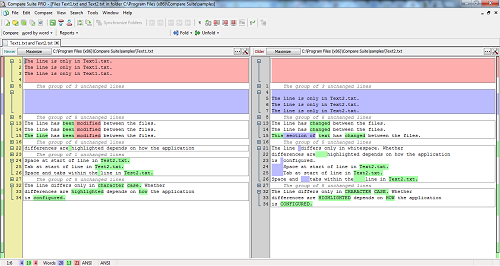
According to our case studies people use this tool for different tasks: regular analysis of reports, comparison of contract drafts, finding the difference between two spreadsheets, comparing PDFs and much more. Some like Compare Suite for the reporting while others find its interface plain and easy to understand.
Comparison of Excel Spreadsheets
For sure, there are some functions that make the difference. For example, as mentioned comparison of Excel spreadsheets is not just text comparison. Compare Suite works smarter, it will tell users what the difference is between two numbers and will calculate this difference in percentages.
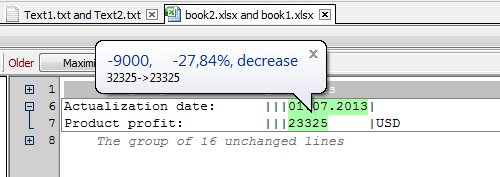
- Read more about the best way to compare Excel spreadsheets
3rd Party Compare Tool for DMS System
What we had to have in mind when developing Compare Suite is that the document doesn’t end its life on a user’s desktop. Normally, there is a long story behind any document. In some cases it was extracted from a company’s Document Management System, and the name was pasted as a parameter to Compare Suite (we call it integration with DMS). In other cases a user simply dragged and dropped the file on Compare Suite’s form.
- Read more about command line support and integration manager
Compare Files From Archives
The program has to fulfill all of the needs that a professional might have. For example, Compare Suite can extract files that you need from zip or a rar archive or download data for comparison from your FTP server.
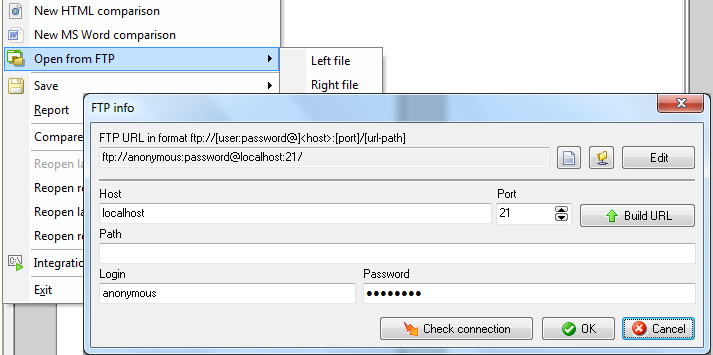
- Read more about archive comparison.
Comment on Changes and Report
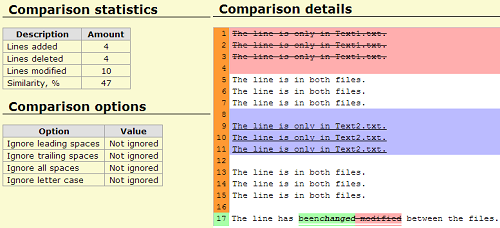
What happens with two documents after they were compared? Users might simply review differences visually and close the program, or he or she might generate a HTML report with all the details about differences found and send it to their colleague.

Ignore Text That is Not Relevant
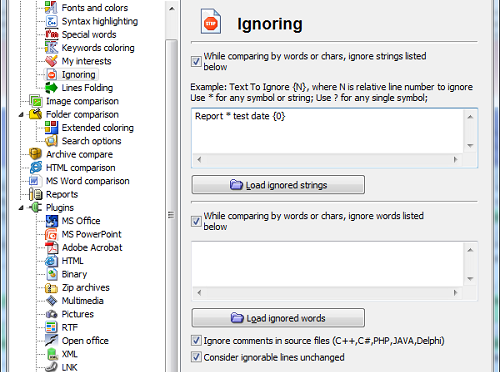
Integration with the document management systems that we mentioned above is just a part of integration in work cycle that Compare Suite provides. For example, when comparing documents regularly you might face the problem that time stamp in the footer of the document always distracts you from changes that matter. In this case you can adjust Compare Suite’s ignore functions. These functions gives a flexibility to ignore certain lines or lines with specific marks.
Compare By Words and By Keywords
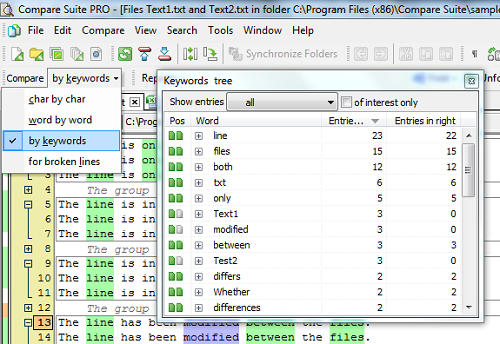
We know that during the work day professionals might face impossible tasks. We have to be prepared for this as well. What about comparison of two documents that have nothing in common? No common ancestor? No lines to compare? For this very case the “by keywords” function was introduced. Try it to compare the text of two articles about the same topic copied from different websites. Doing this simple keyword analysis you’ll learn a lot about language that different journalists use. And off course, this is the fastest way to compare two documents and to get an idea about the difference between them.
Merge Two Documents into One
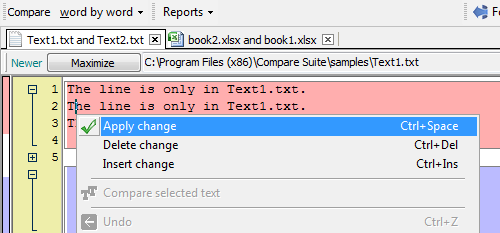
This is great tool for creative people. Do you want to get two versions of the document and compile a new one that will incorporate all the best from both documents? Sounds like a tough task and it is. Technology can help you. In Compare Suite you will find a merge function that will help you with combining two documents.
Compare MS Office Documents
What is the file format of the documents that you normally deal with in your office? Is it PDF, MS Word or Excel Workbook? Do you use files created by free Open Office? Do you have a presentation designed in PowerPoint? Compare Suite supports various file formats so you don’t need to worry about compatibility. The program will process the most popular file formats and show you the difference.

Read more about the comparison of MS Word documents…
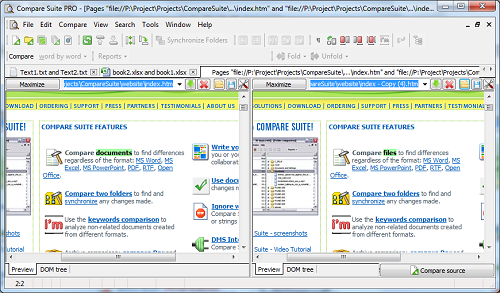
Compare HTML: Code and Web Page View
Among our users are web designers as well. They like Compare Suite as it can compare not only HTML code
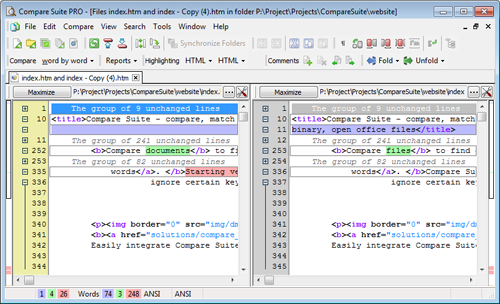
but also web pages as it looks in web browser.
Compare Images and Multimedia
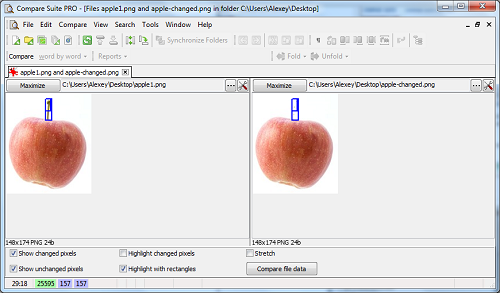
Another reason why professional designers and home users like Compare Suite is that it allows you to compare images and multimedia files. With images it can show you a changed part of the picture. For a multimedia file, it can compare all the information incorporated inside the file such as when you need to choose which file has better encoding quality.
Compare and Synchronize Two Folders
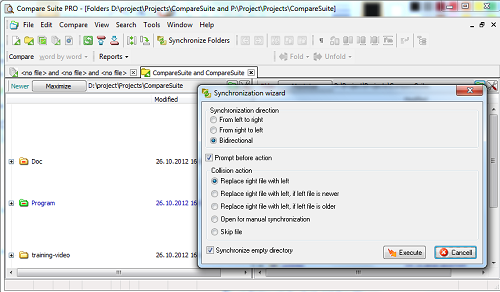
We were talking about files only, but Compare Suite is as good with folders as it is with files. The program allows you to compare and synchronize two folders so that if you have to work on two different PCs you can always have a fresh copy with you.
3-Way Comparison
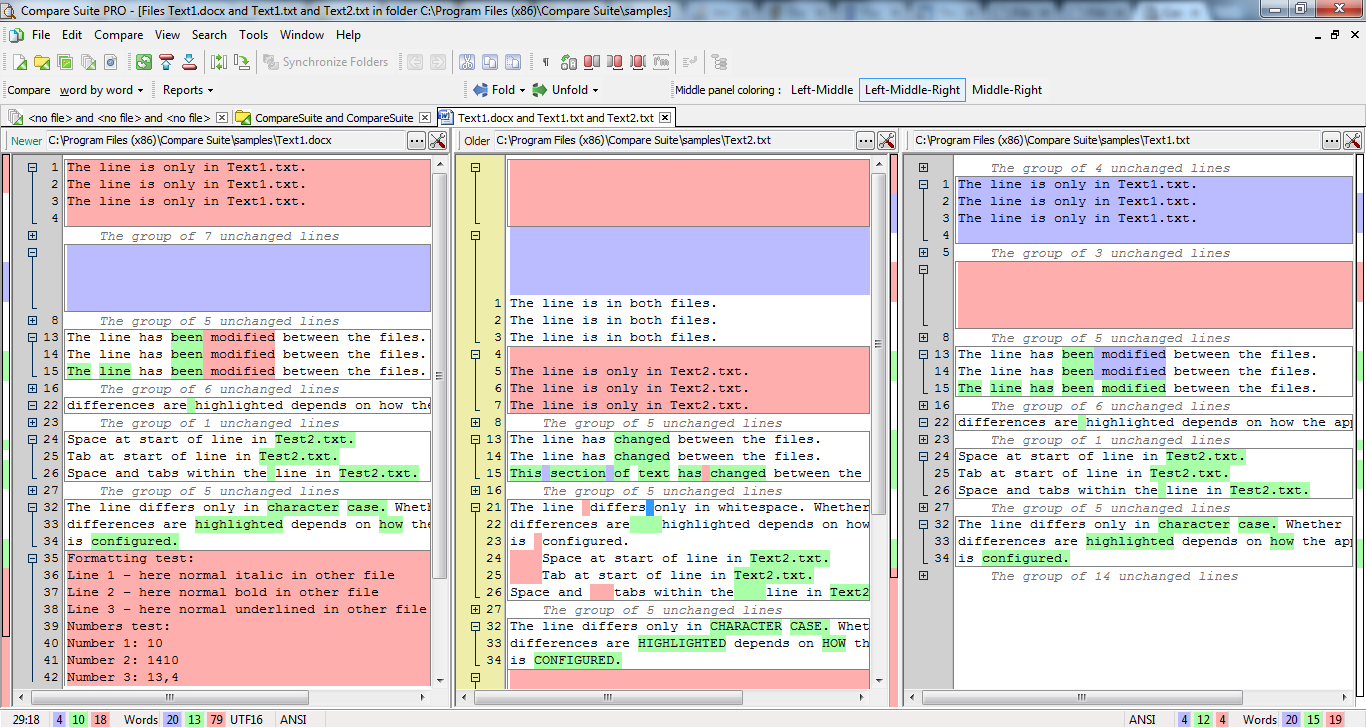
These who need even more functions will be impressed with 3-way comparison released in Compare Suite. You won’t use this feature everyday, but if you have a specific case when you need to see 3 files together with differences between them at once, then Compare Suite is ready to help you.
Try for Free for 30-Day
Finally, our policy is to give everything a try before you pay for it. You can download our 30 day trial version of Compare Suite PRO. Try it on all your business tasks and decide if you are ready to invest in it. If you don’t need file compare software packed with all possible features, then you can start with Compare Suite Light, which provides you with basic comparison for free.


















 Compare documents to find differences regardless of the format:
 Use the
  Archive comparison:
  Compare


 Compare files
 UNICODE is fully supported: open and compare documents in any language or encoding.
 Create a fully customizable
