
Command line interface in Windows is a great way to automate things. The comparison of files is not an exception. Of course we cannot automate all of the process of making the computer decide what changes are important and what are not, but what you can do is to make the process as easy as possible.
In simple words, we want make less clicks and have the results faster.

Start Compare Suite via command line
Compare Suite supports command line interface and the easiest way to use it is to pass two files or two folder names as parameters for the comparison. Something like this:
- comparesuite.exe “C:\my documents\document 1.doc” “C:\my desktop\document 2.doc”
Note: we need to use quotes, otherwise Windows won’t recognize correctly passed strings.
To execute this command line you can paste this line into .bat or .cmd file.
- Most likely, instead of comparesuite.exe you will need to specify a full path to Compare Suite (again, using quotes is a good idea).
If everything was done correctly, Windows will find comparesuite.exe, pass it the two parameters and Compare Suite will be started. The program will immediately compare files or folders passed as a parameter and will display the results.
This is the most typical way of using the command line. But sometimes we don’t want Compare Suite to start…
Silent comparison with results in the report
Sometimes we don’t need Compare Suite to start, we just need to have the resulting HTML report without opening Compare Suite’s interface. In this case we just need to add “-r” parameter:
- comparesuite.exe “C:\my documents\document 1.doc” “C:\my desktop\document 2.doc” “-rC:\my desktop\report.htm”
Compare Suite will compare two files silently, generate a report, and save it to C:\my desktop\report.htm
- In this way you can use Compare Suite in test scripts, like it was shown in this example.
Processing folders via command line
All features that we discussed above apply to the folder comparison as well. Moreover, with folders you can run automatic synchronization. For more details, see the next section.
Making it easy with integration manager
All these parameters might look complicated and sometimes they are. For this very reason we have “Integration manager” in Compare Suite. It will help to prepare a command line with necessary parameters.
- Access “Integration manager” via “Integration manager” command in “File” menu.
In the Integration Manager you will be able to:
- Specify the pair of files or folder to compare
- Select if you want to run Compare Suite GUI or just create a comparison report
- Specify parameters for folder synchronization
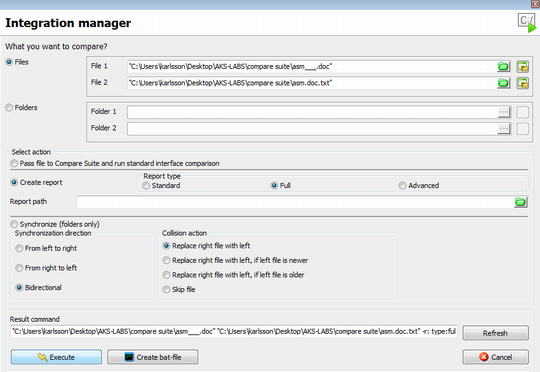
I think everything is self descriptive in this dialog. As for folder synchronization, you will need to choose the method you want to use to resolve possible conflicts and Compare Suite will do the rest of the job for you.
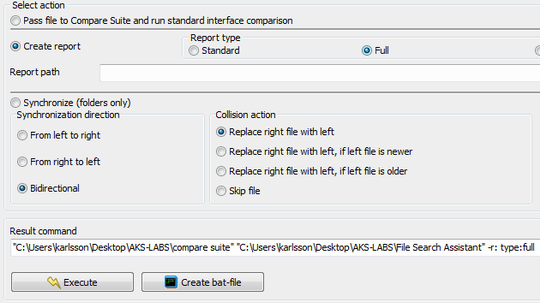
- Folder synchronization feature might be useful for doing incremental backup of your project.
In the end, Compare Suite will show you a command line. You can try it right away by clicking “Executive” button, or you can generate a .bat file and use it for your own script.
What do users say about command line interface?
We use your product as in a command-line as in GUI mode. With these features of your product we track an unscheduled file access and improve security. Read more…
Yury Stepanov, IT Director, Itfin, Russia, Moscow
The PDF comparison is excellent, as well as using the GUI to run comparisons, you have the ability to use the Integration manager to build a command line, which can then be added to a batch file for full automation of the process. Read more…
Ian Falconer, Stoneridge Electronics, Dundee, Scotland. Senior team leader
For us, the command line interface is the key element that enables SVN integration. Read more…
Robert Bocquier, Arturia, France. Lead Software Developer
Command line interface for advanced users
There are several possibilities of using Compare Suite via command line that I want to underline:
- Automated tests. As it was shown in another case study, Compare Suite can be used to analyze the results of tests. You can compare a log file with the current results against an old log file (that supposed to be manually checked). Compare Suite will indicate if these two files are equal or not, and if not, what the similarity score is.
- Ignore certain lines. Compare Suite can be configured to ignore certain lines. When you use command line interface you don’t need to pass these lines as a parameter, as Compare Suite will still use its settings that you can configure via graphical interface. It also applies to other parameter. Read more about line ignoring…
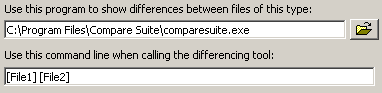
- 3-rd party compare tool. Compare Suite can be used as a 3rd party compare tool with any document management or version control software. Normally, authors of document management software are allowed to configure what 3rd part tool you want to use. And instead of absolute values (like C:\my documents\file 1.doc) you will use some parameters like %File 1% and %File 2%. When you choose to compare two files, the document management system will replace these parameters with specific file names.
An example of integration with ColumbiaSoft Document Locator
Compare Suite and ColumbiaSoft Document Locator Step-by-step guide.
Step 1. Navigate to Repository Configuration and launch Extension Manager.
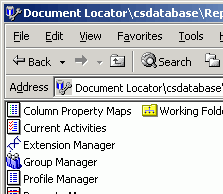
Step 2. Highlight an existing extension. Fill in the information for the differencing tool’s executable file path.
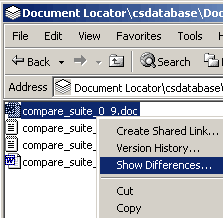
Step 3. Select any file in Document Locator database. Right click and select “Show Differences…” in context menu of this file.
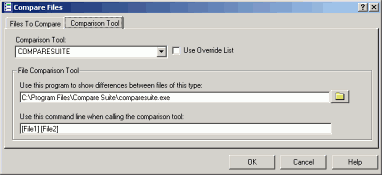
Step 4. Go to “Comparison Tool” page and make sure that Compare Suite is a Comparison Tool used by default.
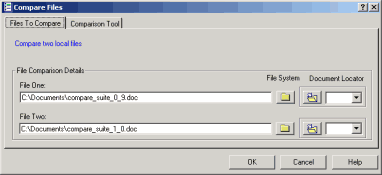
Step 5. Specify the name of file to compare with. Then click OK.
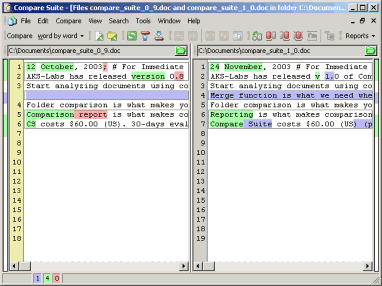
Compare Suite displays the file differences.
We are interested in learning your experience about using command line interface. Feel free to share your story in the comments.



















 Compare documents to find differences regardless of the format:
 Use the
  Archive comparison:
  Compare


 Compare files
 UNICODE is fully supported: open and compare documents in any language or encoding.
 Create a fully customizable

Leave a Reply
You must be logged in to post a comment.