
Contents 

Compare Suite - Quick Start
New Features in Compare Suite
Compare Suite
On-Line
Functions
Running Compare Suite
Command Line
Integration Manager
Simple Running
Drag-and-drop
Comparison
File Comparison
Comparison Principle
Comparison Plugins
Compare by Keywords
My Interest Group
Folder Comparison
Merge
Merge Files
Merge Plain Text
Report Generating
Reports for file comparison
Standard Report
Reports folder comparison
Standard Report
Full Report
Advanced Report
Highlighting
Interface
Common View
Toolbar
Program Menu
Comparison Options
File Comparison
File Color Scheme
By Keywords Comparing - Color Scheme
By Keywords Comparing - Special Words
Comparison Types and Methods
My Interest Group options
Keywords Ignoring
Folder Comparison
Folder Color Scheme
Plugins
MS Office Word Plugin
MS Office Excel Plugin
Web Plugins .htm and .html
Adobe Acrobat .pdf plugins
Binary Plugins
Zip Archive
About Dialog
Comment changed files
Status Bar
Info Panel
Keywords Tree
License
Installing/Uninstalling
Compare Suite - Solutions
Industry and job related solutions
Ways to use Compare Suite. Usage solutions.
Basic features and benefits
Compare Suite - Common Product Issues
Problems or questions concerned application
Installation issues
Ordering issues
Integration issues
Product upgrades
Support issues
Compare Suite - Support Service
AKS Support Service

Compare Suite - Online Manual

Prev Page Next Page

My Interests Group in Compare Suite

Introduction - Functions - Interface

What is "My Interests" 

"My Interests" is a keyword group. It is the way you can tell Compare Suite what your interests are. Once Compare Suite find that some document has a keyword from "My Interest" group, it shows in Info Panel that left or right document is in your interests group. On Keywords Tree panel you can select option to display only keywords that are interest for you.

Read about My Interest group options

Using "My Interests"

Info Panel

Once you specified "My Interests" group, Compare Suite shows on Info Panel groups of interest where right and left text belong to.
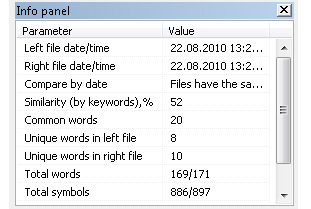
Once you specified "My Interests" group, Compare Suite shows on Info Panel groups of interest where right and left text belong to

In this sample "Group of interest (left text)" is "Common, Software" and  "Group of interest (right text)" is "AKS-Labs, Software".

Keywords Tree

Keywords tree window highlights keyword that are of interest with bold green font:
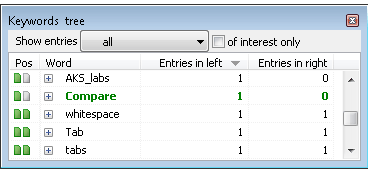
Keywords tree window highlights keyword that are of interest with bold green font

You can check "of interest only" checkbox and Compare Suite will show only keywords that are of interest.
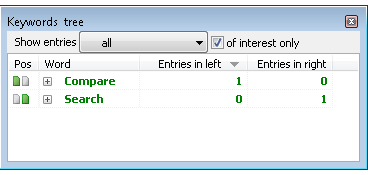
You can check "of interest only" checkbox and Compare Suite will show only keywords that are of interest

Report

When you generate comparative report it also has a Groups of interest section, which has an information about found keywords of interest in compared texts, for left and for right file:
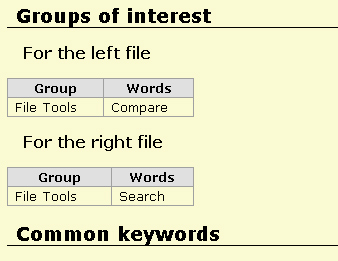
When you generate comparative report it also has a Groups of interest section, which has an information about found keywords of interest in compared texts, for left and for right file

   
Converted from CHM to HTML with chm2web Pro 2.85 (unicode)